Leave daily planning to Rotaris.Build routes automatically.
Assign jobs to eligible teams and put visits in order automatically. Your office follows the day in one dashboard; technicians see their next address on their phones.
Nine jobs are ordered area by area, the way an office does it by eye. Rotaris orders the same jobs to shorten the route; see the difference yourself and try again with new addresses.
Sample day · 9 jobs
Square: the team’s starting point. Numbers show the visit order.
Distance in manual order
Distance in Rotaris order
Appointments and durationsAppointment times and estimated job durations are part of the plan.
The right teamTeam size, skills and working hours are taken into account.
Changes during the dayWhen an urgent job arrives, the plan updates itself.
Manual order: area by area as seen from the starting point, nearest first. Calculated on sample addresses as straight-line distance × a road factor of 1.3. Rotaris builds the real plan with appointments, job durations, team availability and the real road network.
Want to see it with your own jobs?In a free 14-day pilot we build the plan together with your own job list.
Every extra kilometre means fuel, vehicle wear and paid team time that never turns into work. Enter your own figures and see the monthly and yearly cost.
02 · Recovered
Recovered per month in this scenario
Per year
Fuel
Paid team time spent driving
Maintenance, tyres and wear
Reduced distance
Fuel (litres)
Cost of every extra kilometre
How is this calculated?
Monthly km = vehicles × daily km reduction × days. Fuel = km × consumption ÷ 100 × price per litre. Team time = km ÷ average speed × hourly cost. Wear = km × maintenance per km. Yearly = monthly × 12.
This is a scenario, not a savings guarantee. The result depends only on the values you enter; subscription costs are not included.
Want to see it with your own jobs?In a free 14-day pilot we build the plan together with your own job list.
The team closes the job on the phone; you see every step.
The field team opens the next job, fills in the form, adds photos and a signature and sends it. Without internet the record waits on the phone and is sent when the connection returns.
Actual Android app · demo account · 2× speed, waiting time cut
GPS tracking
Live positionEach team’s position and next job on the map throughout the shift.
Arrival recorded automaticallyWhen the team reaches the address the job is marked on site; nobody has to remember a button.
Unplanned stopsLong stops away from jobs are flagged, with an instant alert if you want one.
Closed at the address?The office is alerted when a job is closed away from its address.
Replay the dayWatch the team’s track and stops minute by minute.
Location is collected only while a shift is open; staff consent is collected in the app.
END OF THE DAY
The whole day on one page.
What is done and what is leftCompleted, postponed and open jobs, team by team.
Teams and shiftsShift length, distance, stops and time on jobs.
Payments and documentsPayments received and signed service forms in one place.
Enter your name, phone number and company; we will call you and plan the pilot together.
Common questions before you start
What happens after the pilot? Is there a commitment?
The 14-day pilot is free and needs no commitment. If you want to continue, we make an offer based on your teams and vehicles; if not, the pilot account is closed.
My team is not tech-savvy. Can they use it?
In the field app the team only sees the next job: set off, start, fill in the form, send. We show the team together during setup; the pilot is there to try exactly this.
How is the price set?
The price depends on the number of vehicles and users in the field. At the end of the pilot you get a clear offer for your own team setup.
Does it work on iPhone?
The field app is currently for Android. The office panel works in current browsers on computers, tablets and phones.
Is downloading the app enough?
No. Your company needs a Rotaris account and you need an assigned user. Office staff sign in to the web panel; field staff use the Android app.
What can I do without a connection?
Previously synchronised assigned jobs and related information can be viewed. Forms and results are saved on the device and pending records are sent when the connection returns. The first sign-in and receiving new data require a connection.
Can we use our own service form?
Fields and reusable sections can be defined for each job type. Forms are versioned and published changes synchronise to the app. The service PDF is generated according to company and document settings.
Can we manage multiple branches?
Branches work with their own teams, settings and daily plans. Managers can see company-wide information, operators see their assigned branches, and field staff see their own team's jobs.
Can we start with our existing Excel file?
The dashboard supports Excel job imports. Before starting, we review a sample file’s columns and customer and address matches with you to agree the import scope.
What should we prepare for a setup discussion?
Prepare your team and branch structure, a blank service form, job types and a sample job list if available. These inform form fields, access permissions and routing rules. You do not need to share real customer data in the first discussion.
How do location tracking and access work?
Location tracking is limited to active shifts. Company administrators see their company; operators see assigned branches; field staff see their own team's jobs. The phone setup includes disclosure and permission steps. Appropriate company texts and settings are reviewed during setup.
DETAILED PRODUCT TOUR
Look at every screen up close.
Route examples, a service job step by step, reports, customer and device history, stock, documents and setup.
Route examples from real demo days, the urgent-job flow and the hand-over from office to field.
01 · The day’s jobs
The address, appointment and estimated service duration are added to each job.
02 · Automatic planning
Jobs are assigned to suitable teams, with visit sequences and estimated arrivals calculated together.
03 · The team’s route
Teams follow the current sequence on their phones. New jobs or team changes prompt a review of the plan.
Jobs already under way stay in place. On busy days jobs remain on the route and on the team's phones, while the office can review the plan.
26 October 2026 · Demo panel
THE DAILY PLAN BY TEAM
Three teams in the same day’s plan.
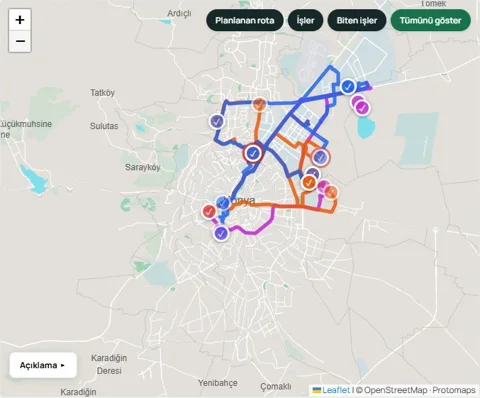
Each team’s route has its own colour on the map. You can follow which visits belong to each team, their sequence and the day’s allocation in one place.
Team A12 visits
Team B10 visits
Team C11 visits
The allocation depends on the day’s service durations and team requirements.
Jobs beyond capacity and address accuracy
See why a job has not been assigned.
A lack of eligible teams and a full schedule are different situations. Open the job from its alert to review the appointment, team requirements and plan.
Unassigned job alert · demo panel, 26 October 2026
When the day is full
The job stays on the route, its estimated time may run past the shift, and the team sees it as a normal job and can choose which to do next. Anything left when the shift closes carries over to the next working day with the same team.
When no suitable team is available
Appointment time, required headcount and configured skill rules are considered together. The image shows the alert for this situation.
Open the job from the alert to review its appointment and assignment.
A route starts with the address on the map.
The written address and map point need to refer to the same place. The panel shows whether a location was found and how precise it is alongside the job.
Job address and “Precise location” status · demo panel, 26 October 2026
If no location is found
The job does not enter automatic routing and receives no sequence or estimated arrival. The office can check the address and mark it on the map.
If the location is approximate
The point may only identify a neighbourhood or district. Check the map before the visit and choose a more precise point.
When the location is precise
Planning uses this position. The image shows a demo job with its address and a precise-location status.
Once corrected, the location is considered in the next planning run alongside appointments and team requirements.
Routing rules and changes during the day
What if an urgent repair comes in during the day?
The office creates the job.The request enters the job pool with urgent priority.
The plan is reviewed.Location, availability and existing work are considered together.
The operator stays in control.They can adjust the team or assignment manually when needed.
The team receives the updated plan.Changes are synchronised to the field app.
Try a three-stop example plan
A SMALL PRODUCT TOUR
Choose a stop and open its job record.
Try reading the location, stop duration and result together across three example visits.
Interactive teaching example · names, durations and the diagram were created for this tour. Actual demo reports follow below.
EXAMPLE VISIT · 01
The entrance door works again.
Location
Example Business Centre · main entrance
Time at location
45 min
Job result
Completed · work and parts recorded
45 minutes describes time at the location. Work performed, parts used and the signed service record belong to the job detail.
The checklist, technician's note and maintenance result remain linked to equipment history. The next maintenance is evaluated using the configured rule.
Exceptions leave a record too. These explanations describe the workflow without changing any live job.
The customer is absent or the visit cannot proceed
The technician records an appropriate unsuccessful result and any required note. Reasons and possible charges depend on company definitions. The office uses that record to decide the next action.
A job is moved to another day
The operator chooses a new planned date. A postponed job stays out of routing until that date, when it returns to the planning pool.
The phone loses its connection
Previously synced jobs can be viewed and results can wait on the device. A record is not considered delivered until the server acknowledges it. First login and fetching new jobs require a connection.
How does a question reach the office from the field?
From an open job, the team uses “Notify office” to leave a note and can mark it urgent. The office reply appears in that job’s conversation.
01 · Field → office
Example note: “The customer wants extra maintenance. Should we do it during this visit?”
02 · Office → field
Example reply: “Finish the current repair first; we will create a separate maintenance job.”
03 · Back to the job card
An “Office reply available” badge takes the team to the job conversation. A note sent offline is synchronised when connectivity returns.
An illustrative conversation between office staff and a field technician.
Reassign a job when the plan changes
Example: the planned team changes before a visit has started. The office updates the existing job’s assignment rather than creating a copy.
01 · Original plan
The visit is assigned to Team A. Customer, address and job description belong to one work order.
02 · New team
The office assigns an eligible job to Team B. The relevant teams’ job lists update through synchronisation.
03 · One record, traceable change
The job number and existing records remain. The assignment change can be followed in the job history.
Illustrative planning example. Jobs in progress or worked on while offline follow additional rules; this does not imply unrestricted reassignment in every state.
How office staff, technicians and managers use Rotaris
IN YOUR WORKDAY
Everyone sees their side of the same job.
The office manages the day's plan.
Follow the job list, appointments and team status in one panel. When a new request comes in, review the plan and make the changes you need.
A short selection from the actual demo recording: planning, job history, collections and stops. Open a chapter below for the detailed tour.
Full recording chapters · 1 minute 22 seconds
Swipe sideways to see the other topics.
Silent screen recording of the real Turkish demo panel. An existing record is reviewed; no new job or payment is created. Turkish / English captions available.Read the text version of the tour
Replay the day; select a stop to move the time slider to that moment.
A CLEAR VIEW FOR MANAGERS
Know how the day went.
Bring completed jobs, working hours and payments into one report. See where a team stopped, how long they stayed and which jobs were deferred.
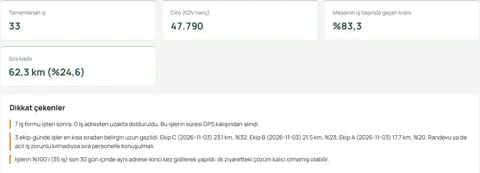
Review results and points that need attention for your chosen period. Look at the team, staff and daily records behind the summary.
Review actual travel, visit order and travel outside the expected route. The shortest order uses the same start and end points but excludes appointments and urgency, so the difference alone is not a measure of performance.
Turkish demo interface · Period: 3 November 2026 · Captured on 4 November.
Use the job report to review why work was deferred, how often it was deferred and which jobs were paused.
Explore a team’s day: travel, stops and job records
THE DAY'S TRAIL, INSIDE THE REPORT
A team’s day, from records to report.
Open an employee’s daily record to review the addresses visited, stop times and job outcomes together.
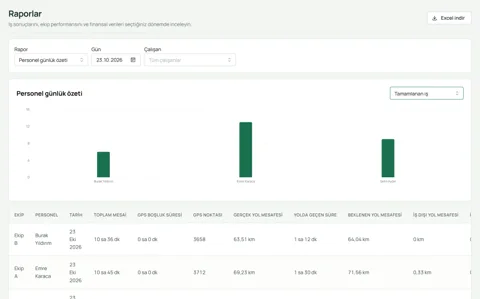
23 October 2026 · Team A · Emre Karaca · Actual demo records
Completed jobs
13
Total shift
10 h 45 min
Time travelling
1 h 30 min
Actual distance
69.23 km
Reports → Daily staff summary → Emre Karaca
What do the report values mean?
Distance travelled
The total journey between valid GPS samples during the shift. This example records 69.23 km; it is not a reading from the vehicle’s odometer.
Expected distance
The sum of road estimates between stops: 71.56 km in this example. It differs from GPS distance and the planner’s daily route length. The difference is not automatically a saving.
Stop duration
A period of staying in an area identified from location samples. Default detection looks for at least 5 minutes within a 50-metre area. This is different from work duration calculated from start and completion events.
Job events
Records such as departing, arriving, starting work and submitting a result form the job timeline. Read them alongside the GPS trail; they are not a continuous location record.
GPS gap
Intervals without location samples are marked separately. They are not treated as uninterrupted tracking; missing data affects how the report should be interpreted.
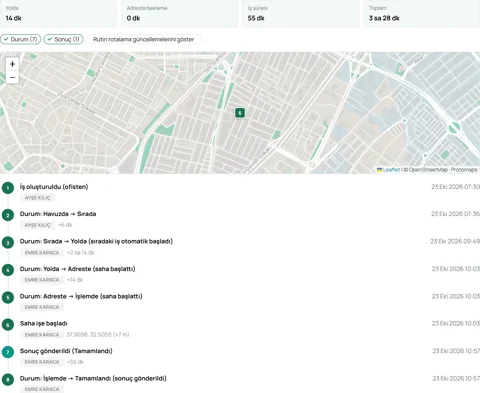
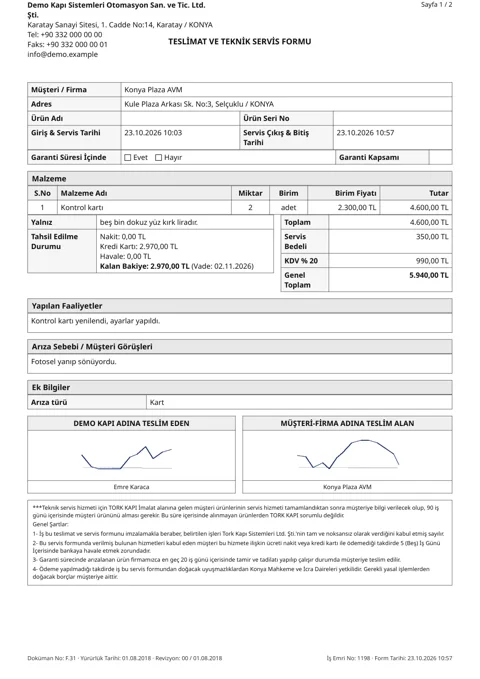
Job #1198: 10:03:11–10:57:49 is approximately 54 minutes 38 seconds. Rounding to the nearest minute produces 55 minutes; the time labels omit seconds.
The same day: planned route and recorded journey
23 October 2026 · Team A. Only the route layer changes on the same panel map. Position, zoom and job pins stay the same. The plan view shows a dotted line; the recorded journey view shows the solid GPS trail.
Planned route
Actual demo panel · 23 October · Team A · plan layer
Recorded journey
Actual demo panel · 23 October · Team A · GPS layer
These are demo records. The images show how the plan and recorded journey can be reviewed; the difference between the lines alone does not demonstrate fuel or time savings.
How do shift, travel and stop time differ?
Three views of the same day: the full shift, time spent travelling and time at one selected location.
10 h 45 minShift · the full working interval
1 h 30 minTravel · time spent travelling during the day
55 minSelected stop · time at job #1198's location
55 minutes belongs to one stop. Travel and this single stop do not add up to the whole shift; other jobs and intervals also exist. Stop duration alone is not a measure of labour time.
Swipe sideways to see the other topics.
Open the daily record from the summary.
Open a person's row to see daily metrics, the GPS trail, jobs and stops. The team summary shows team totals; the personal detail shows that person's trail.
Expected distance
71.56 km
Actual distance
69.23 km
Selected metrics from Emre Karaca's daily report for the same day.
The person's daily GPS trail and stops · actual Turkish demo panel
Who stopped where, and for how long?
Filter by team, person, stop type and minimum duration. Select a stop in the list to focus the map on its location. This demo day has 13 Team A stops and no unplanned stops.
Job location
A stay at a service job location.
Warehouse
A stay near the defined warehouse.
Home
A stay near the defined home location.
Unplanned stop
A stay that does not match the other types.
Stops report · Team A · 23 October
55 minutes at job #1198's location.
Emre Karaca's stop at the Konya Plaza AVM job location: 10:03–10:57. The map's 55 label is a duration in minutes, not the visit order.
Customer
Konya Plaza AVM
Selected stop
10:03–10:57 · 55 min
Where available, a stop is linked to the job number and customer. A nearby customer is described with proximity and distance, rather than presented as the exact address.
Select marker 1 or 2 on the map to inspect the corresponding field.
Selected job stop · #1198 · 55 min
Review the day, step by step.
Choose a date, play the trail or move along the time slider. Selecting a stop moves playback to that moment and shows the person's position on the map.
GPS loss and offline intervals are shown separately in reports. This demo day has zero minutes of recorded GPS gaps. Location tracking operates only during an active shift.
GPS gaps
0 min
Location tracking: active shifts only
GPS gap duration and distance metrics in the daily reportQuick guide to Turkish screen labels
İş lokasyonu
Job location: a stop associated with a service job.
Süre
Duration: stop duration or work duration, depending on the record.
Açık bakiye
Outstanding balance: the amount still to be collected.
Want to see it with your own jobs?In a free 14-day pilot we build the plan together with your own job list.
Keep customers, service addresses and equipment connected. Previous repairs, parts and maintenance dates are ready when the next visit begins.
CustomerKonya Plaza AVM
Service addressLoading entrance
EquipmentGarden gate motor
Every visit is linked to the right address and device.
01
Customer → address → equipment
Find customer, address and equipment history in the same record. Review earlier service visits and parts before the next job.
02
Connect maintenance dates to the work plan.
Set equipment maintenance dates. When automatic maintenance is enabled, a job opens when it is due; an existing open maintenance job is not duplicated.
Last service
→
Next maintenance
Due date
Maintenance job
Daily plan
03
From warehouse to job to report.
Track materials in central and team warehouses. Review the stock movement linked to a part used on a job.
Customer history · two visits for the same customer
What to look forPrevious visits stay linked to the customer.
Warehouse receipt · 21 October demo record
#1198 · two control boards used on the job
What to look forA purchase / receipt movement: item, quantity, warehouse and date.
Daily report · demo data from 23 October 2026
What to look forReview job outcomes by person and day.
Take a closer look at warranty and stock records
Read warranty information alongside service history
The warranty expiry date is stored on the equipment record. Warranty information on the service form is considered together with the scope of that job.
Equipment record
Brand, model, serial number and warranty expiry date are linked to the same equipment record.
Service form
A bound warranty field can suggest a value from the equipment date. The job records warranty status and the scope description.
Previous visits
Equipment history and the count of warranty repairs help assess repeat visits to the same equipment.
A warranty date does not automatically make all parts and labour free. Scope and charges are assessed through the service record.
The same job's material and stock movement
A test record prepared to demonstrate the stock connection. It is separate from demo job #1198.
Rehearsal job record
#1
Material used
Photocell controllerFOTOSEL
Team warehouse · before
5 pcs
Stock issue linked to this job
−1 pcs
Team warehouse · after
4 pcs
In this rehearsal, one catalogued item was issued from the team's warehouse for this job. The job record, stock movement and remaining quantity were verified together.
Does every material line reduce stock?
Catalogue item + warehouse
In this separate test rehearsal, 1 photocell controller with code FOTOSEL was used from the team warehouse. A usage movement linked to the same job reduced stock from 5 to 4 units.
Free-text material line
The same rehearsal included 2 metres of cable trunking without a catalogue item or warehouse. Its charge appears on the service form; this line creates no stock usage movement.
Stock linkage depends on the catalogue item and selected warehouse. Typing a material name in a description alone is not stock consumption.
25 Oct 2026
THE SERVICE RECORD
The job is finished. The record stays with you.
Keep the work performed, parts and customer signature together. Create the service document and track payments and the remaining balance from the job record.
DEMO JOB #1198Completed
An extract from the service form
Konya Plaza AVM
Fault type
Control board
Work carried out
The control board was replaced and settings adjusted.
Materials used
2 control boards
Included in the document
Service details, staff and customer signatures
A readable summary of fields from the demo record, not an interactive data-entry form.
Service PDF generated from the same job · first page
Form fields, signed documents and payment examples
THE SAME JOB'S FINANCIAL RECORD
Materials
4,600.00 TRY
Service fee
350.00 TRY
VAT
990.00 TRY
Service total
5,940.00 TRY
Card payment received
2,970.00 TRY
Outstanding balance
2,970.00 TRY
A partial payment does not hide the remaining balance when the job closes. The office can track the amount outstanding and its due date.
The total is 5,940 TRY, recorded payments are 2,970 TRY and the outstanding balance is 2,970 TRY. Completing the job does not mean the remaining payment has been collected.
How does the form change with the selected fault?
Change the fault type to see how the form adapts. Choosing Motor reveals the serial number field. Your company’s form can use different fields and rules.
Use a sample value rather than a real equipment number.
The motor serial number field is hidden for this selection.
These fields only run this page’s example. Your entry is not sent to a server or saved in browser storage.
Inside the documentComplete document fields: work, signatures and amounts
Work performedSignaturesAmount breakdown
Partial collection, outstanding balance and the next payment
See how a partial payment changes the remaining balance. The amounts here are illustrative.
Job total
6,000.00 TRY
Total collected
2,000.00 TRY
Outstanding balance
4,000.00 TRY
Which payment methods make up the collected total?
Cash
1,000.00 TRY
Card
1,000.00 TRY
Bank transfer · later payment
4,000.00 TRY
Illustrative breakdown: the first 2,000 TRY is 1,000 in cash plus 1,000 by card. A later 4,000 TRY transfer brings the total to 6,000 TRY. No actual demo job payments are changed.
After the first payment, collected money and the outstanding balance are shown separately.
ON THE TECHNICIAN'S PHONE
The next job is on their phone.
Addresses, equipment history and service forms are ready in the field. Prepare records for previously synced jobs offline; pending records are sent when the connection returns.
What happens to a record when the connection drops?
Try the sync states · illustrative example
Saved on the phone
Server acknowledgement
The service result is saved on the device
Waiting to send. The record stays in the device queue until the server confirms receipt.
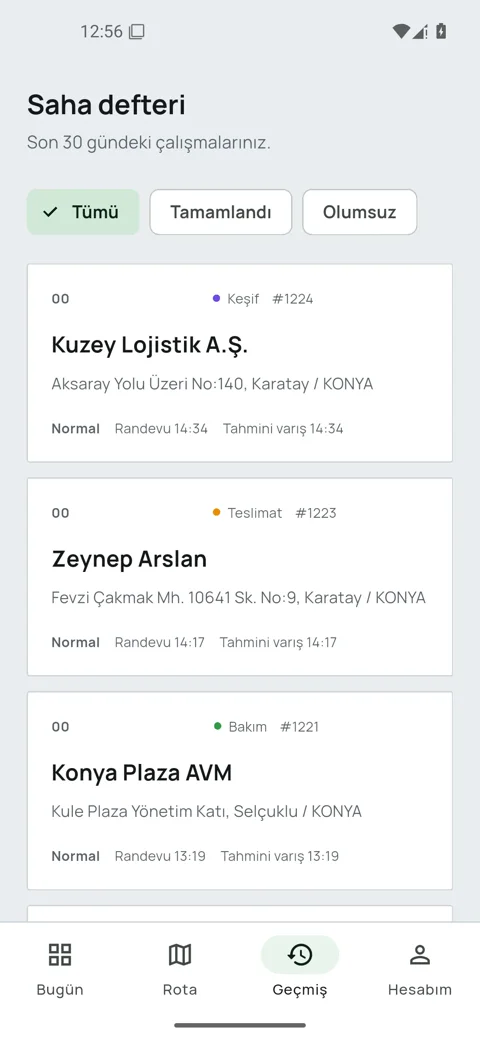
Android app · Emre Karaca · #1198 · Turkish interfaceActual service PDF opened on Android · #1198
Completing a job and setting up the Android app
How is a service record completed on the phone?
Follow a maintenance job on the phone: the form, photo, customer approval and submission. These images come from test job #5.
01 · A form for the job
The technician fills in the maintenance checklist. Sections and fields depend on the schema published by the company.
02 · Photo and work note
The work note and photo attach to the same service record. Gallery selection is available when the company allows it.
03 · Summary and customer approval
The customer reviews the work summary and terms, then enters their name and signature. The screen shows a test stroke in the signature area.
04 · Submission and connection state
An approved record waits on the phone while offline. This screen shows a pending submission, not a server acknowledgement. The queue retries when connectivity returns.
Move to the app once your company account is ready. Permission screens can look different across Android versions.
01 · Download the APK
Use the download link on this page. Android may request installation approval and permission for your browser to install an app; you approve the installation yourself.
02 · Sign in to your company
Use the user account and password provided by your company. First login and fetching initial data require an internet connection.
03 · Review permission steps
Review the disclosure, location, notifications and battery settings in the order shown by the app. Location tracking is limited to active shifts; Android does not install silently.
04 · Check the first sync
Check that assigned jobs have arrived and review sync status. A pending submission and a server-acknowledged record are different states.
Illustrative field setting; this is not a product screenshot.
Want to see it with your own jobs?In a free 14-day pilot we build the plan together with your own job list.
From Excel to the work plan: check before importing
Excel import on the work orders page uses customers, locations and job types already defined in the system. The check examines the file without creating jobs.
01 · Fill in the template
Download the panel template. Match columns such as customer reference or name, location label, job type and planned date to existing records.
02 · Review the check results
Choose the file and run the check. Review total, valid and failed row counts and the reasons listed for individual rows.
03 · Correct and check again
Fix errors in the file, select it again and repeat the check. The panel enables import after a successful check with no errors.
Illustrative file rows · not a panel screenshot
Customer ref
Job type
Planned date
Check
M-1001
ARIZA
26.10.2026
Valid if existing records match
M-1001
ARIZA
32.10.2026
Invalid date: correct the day
These sample rows have not been imported. The customer and location must already exist. This is not an automatic migration service for every CRM.
From a paper service form to a digital record: a setup example
Anonymous setup note · door and access systems service · based on product and setup records
THE STARTING POINT
The company's existing service form
The setup referenced a paper technical service form containing product and customer details, work performed, materials, amounts and handover signatures.
THE CONFIGURED WORKFLOW
The form fields were linked to the job record.
Form sections for job types, result codes, company document settings and the signature workflow were configured. Output was arranged as a service PDF with document code and revision details.
Branches, depot and teams were defined, with separate user access.
Job types and forms were checked in a separate rehearsal company using the same settings.
Android forms, permitted gallery selection, signatures, the offline queue and PDF generation were rehearsed.
This example shows the topics covered during setup.
Let's use your own workflow as the starting point.
Your teams and daily workload
The service forms you use
Route and collection needs
Tell us about your process; let's explore it together.
A concrete checklist for getting started
You prepare
Branches, teams and user roles
A blank service form and job types
A sample job list without personal data, if available
We configure together
Form fields, outcomes and document settings
Shift, depot and routing rules
Inventory and collection options to use
We check the first use
The example job reaches the right team
Phone form, signature and sync state
Result, PDF and report record in the panel
We’ll agree the setup scope based on your existing files and workflow.
How do we get started?
01
Company and branches
The company account, branches, roles and teams are configured.
02
Job types and forms
Your service fields and materials are adapted to the way you work.
03
The team signs in
The Android app is installed and the first jobs synchronise with the assigned account.
FOR TEAMS WITH AN ACCOUNT
Already using Rotaris?
Sign in to the dashboard or Android app with the account provided by your company.
The Android app requires an existing company account. The web panel is available in your browser.
Android APK · A company account is required. Your browser may ask for permission to install the app.
Scan with your phone
About the images and examples
Panel screenshots
Dashboard screenshots were captured from the demo account on 23 and 26 October; management summary and route efficiency screenshots on 4 November 2026. Records are simulated data, not customer endorsements or measured savings.
Android screenshots
24 October 2026 · actual Android emulator rehearsal, interface version 1.0.14. This example is separate from #1198. Screens were not redrawn; test signatures and a test photo are used. The permitted gallery path was tested rather than the camera.
Illustrative examples
The route diagram, conversation, Excel rows and payment breakdown illustrate how the product is used. The stock connection was verified with a separate test record. Source notes appear alongside the examples.
We would like to use Google Analytics and Google Ads cookies to measure whether our ads work. If you decline, only what the page needs to work is used.Privacy policy